A green pump symbol, a tank at 62% and a pressure reading of 4.1 bar look reassuring. But does green mean the pump is running, or only that a start request was sent? Is the pressure current, or the last value received before communication failed?
SCADA commissioning connects each visible state to something the operator can verify. This tank-and-pump example uses illustrative values, not operating limits for a plant.
Industrial context photo: Ludovic Delot / Pexels.
Arrange the screen around an operating question
Level, running feedback, outlet pressure and a short trend show whether the tank is filling and the pump is running. A detailed drawing is less useful if the required reading sits on another page.
In Orenda SCADA, a process overview or dashboard provides a starting layout. Equipment and connections can form a reusable module. Its 2D and 3D views share the same sources, so a second view does not require a second definition of the machine.
Check the source behind each label
| Display | Meaning to establish | Acceptance check |
|---|---|---|
| Tank level | Percent or height; location of scaling | Compare with the same physical measurement |
| Pump running | Request or actual feedback | Request on, feedback off |
| Outlet pressure | Measurement point and unit | Compare value and unit at that point |
| Data status | Time of the last successful reading | Distinguish stale from unavailable |
A level already converted to percent in the PLC must not receive the conversion again. Changing a label from kPa to bar also does not convert its value.
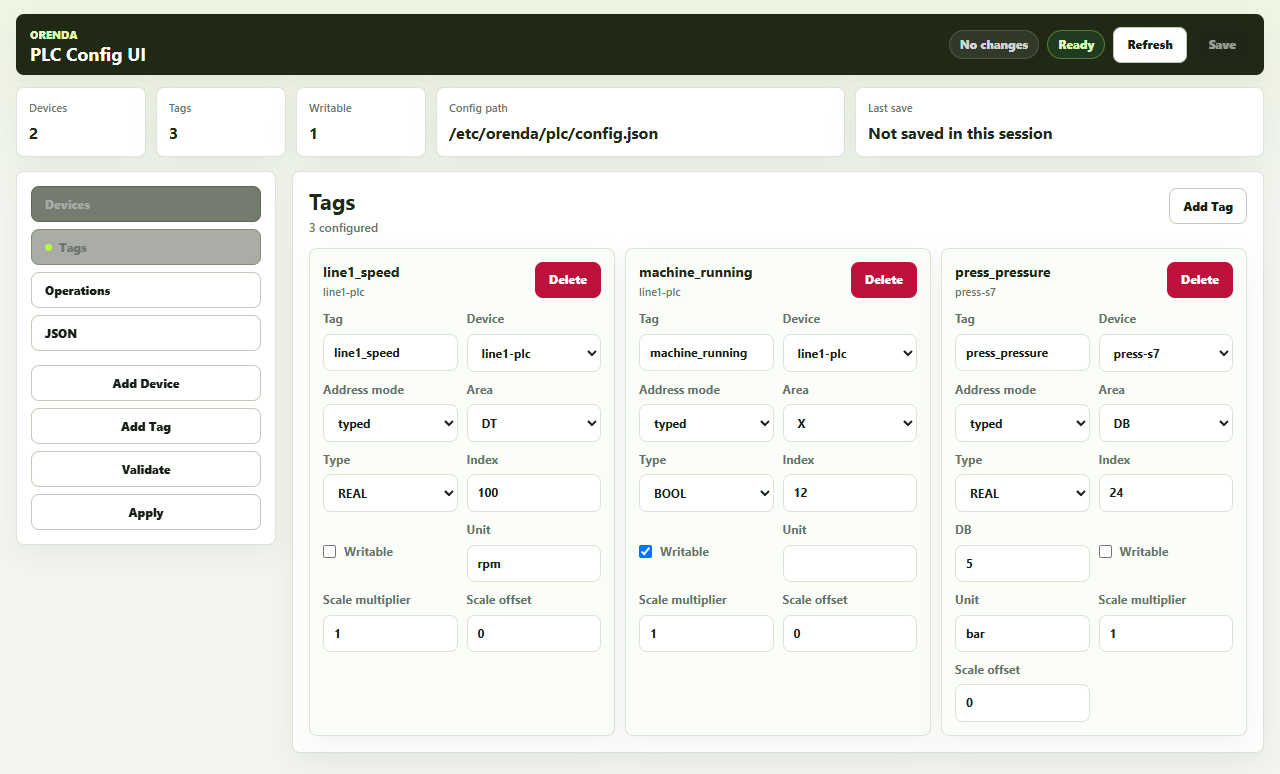
Studio’s Data section selects approved PLC tags for equipment live inputs. The Signals view exposes their values, reading times and quality.
Simulate disagreement and missing readings
The revealing test is often a plausible combination: the start request is active, running feedback is absent, and pressure is unavailable. The screen should explain that state without presenting the pump as healthy.
Orenda SCADA’s simulated inputs support numeric and boolean values plus good, stale and unavailable quality. These tests exercise the display without operating the physical equipment. A missing pressure must not remain visible as a fresh 4.1 bar measurement.
Live-data preview then compares the saved draft with actual approved sources. It is read-only and does not enable machine commands. Simulation tests interpretation; live preview tests the mapping. Both are needed.
Test the complete alarm behavior
A red indicator is only one part of an alarm. The configured delay, opening event, acknowledgement and clearing behavior all matter. Acknowledging an alarm records an operator response; it does not prove that the condition has cleared.
Studio preview does not persist or acknowledge production alarms. A published test project is needed to qualify those functions. Observed alarm events belong to a published version, and missing data does not clear an active alarm.
Studio evaluates these alarms while a viewer requests data. Continuous monitoring and machine protection remain with the configured PLC or host alarm service. Their responsibilities should be clear at handover. The alarm and downtime guide explains why those events are also different from production-loss records.
Qualify controls as well as displays
A browser control needs an approved writable source, the appropriate user permission, numeric bounds in raw PLC units, a fresh good-quality reading and command confirmation. A percent value on screen may use a different PLC scale; the acceptance check must cover both.
Orenda SCADA’s HDMI viewer supports reading and navigation, without machine commands. The AI design assistant prepares draft changes; applying its proposal does not operate the equipment or publish the screen.
Hand over an identifiable version
Final review includes the actual monitor, tablet layout, long labels and the route back to the process overview. Design checks open incomplete objects at the relevant setting. Publishing creates a fixed version; later draft edits do not alter the running display.
The handover identifies that version, its sources and remaining issues. A process sketch, tag list and operator questions also provide a useful starting point for a SCADA demo. See MES, HMI and SCADA for the wider system boundary.