MES for parts production and assembly

Follow jobs, counts and stops across your workcenters. Give the production team a consistent record of what ran and what each shift delivered.

Keep the job connected to the machine

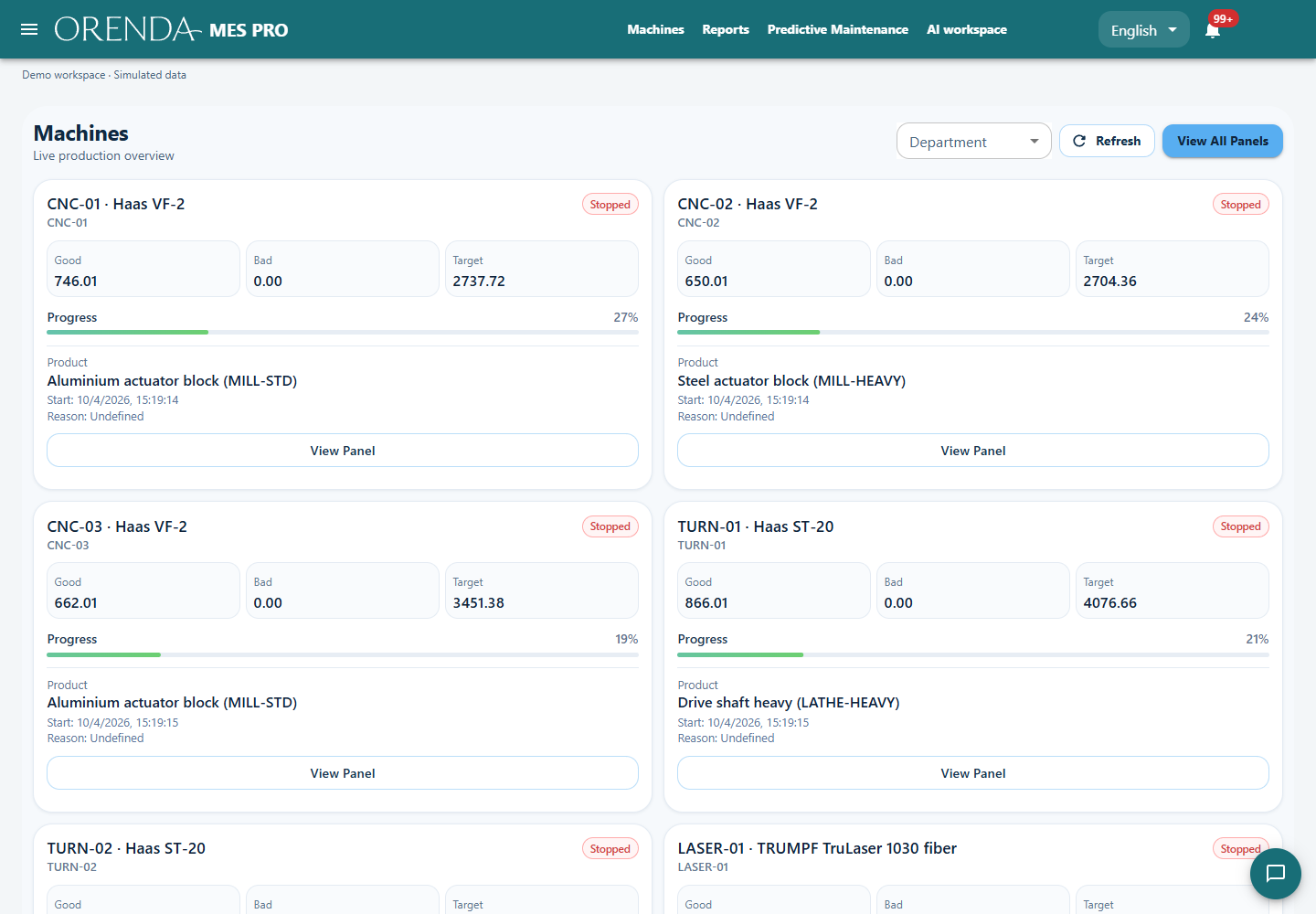
A workcenter can produce several products during one shift, each with a different target and expected cycle time. Orenda MES links production runs to the product and work order. The team can review quantities, duration and losses for each job rather than relying on the machine's daily total.

Orenda MES workcenter cards with simulated production data

Orenda MES demonstration · Simulated production data

Compare each product against its own operating conditions

Suppose a machine produces a short-cycle part in the morning and a longer-cycle part in the afternoon. This illustrative change can lower the afternoon count without indicating a performance loss. Product and expected cycle time are needed to interpret the result.

Keep each job in its own production run and record setup or tool-change time with the appropriate reason. The shift lead can then investigate whether a plan variance came from processing time, preparation or material waiting.

Keep the inspection connected to the production job

Quality inspection records can reference the plan, work order, run and workcenter. They retain measurements, results, defect quantities and notes. Where configured, a matching plan can trigger an inspection when a run ends.

An out-of-tolerance measurement can therefore be reviewed with the relevant inspection and production record. Production, planning and quality teams can follow the job and its outstanding checks without reconstructing the context in separate lists.

Make the shift easier to follow

Product changes

Select the correct product and work order when the job changes. Check the expected cycle time and count unit for that product.

Stops and lost time

Record a short, useful list of downtime reasons. Review the longest losses with the team instead of relying on a total alone.

Accepted and rejected parts

Agree where parts are counted and who records rejects. Add quality inspections through the appropriate module.

Keep the production plan connected to the operator's work

Planning assigns the product, workcenter and target to a work order. The operator selects the job and completes the relevant production records. The shift lead reviews progress and stops. With the appropriate modules and rules enabled, completed runs update work order quantities and can trigger the required quality inspection.

  1. Create the work order with its product, target quantity and workcenter.
  2. Select the job in the operator panel and link configured machine counts and states to the run.
  3. Record job changes, downtime reasons and rejected quantities against the relevant run.
  4. Review work order progress, quality inspections and production losses at the shift handover.

Review the job, process and production losses

Production

Which job ran, for how long, and how many parts were accepted?

Process

Which machine states or measurements need an operator screen? Add a focused SCADA view.

Reporting

Which recorded loss should the team review next? Build a report around that decision.

Getting started in discrete manufacturing

Must every machine be connected first?

No. Scope a representative workcenter and validate its record first. Each additional machine needs confirmed signals, mappings and operator responsibilities.

Where does SCADA fit on the line?

Use SCADA when operators need a process view with selected machine values and trends. MES keeps the product, work order and production result. Agree which signals each application needs.

Follow a work order from planning to shift review.

We’ll review your product changes, count points and quality checks, then show how operators and managers use the same production record.

Request a production demo